See what's new in our latest product release: AI, SMS and MMS.


Cross-channel marketing automation
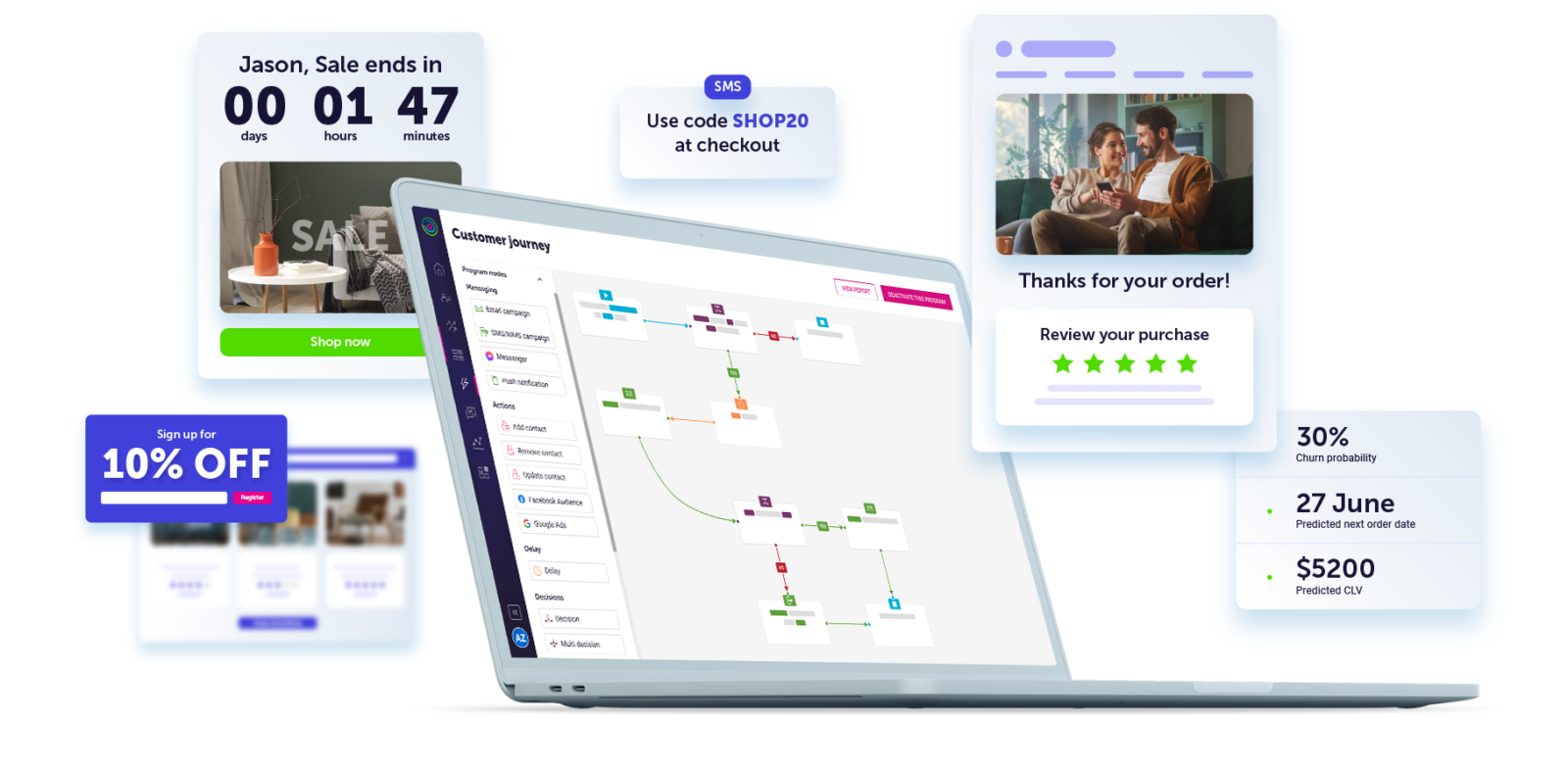
Personalized customer experiences that exceed expectations
Popular integrations




Go beyond the expected with Dotdigital

The all-in-one platform for growth-minded marketers
-
Make the most of your data
Intelligently enrich your data and you’ll never leave a poor impression
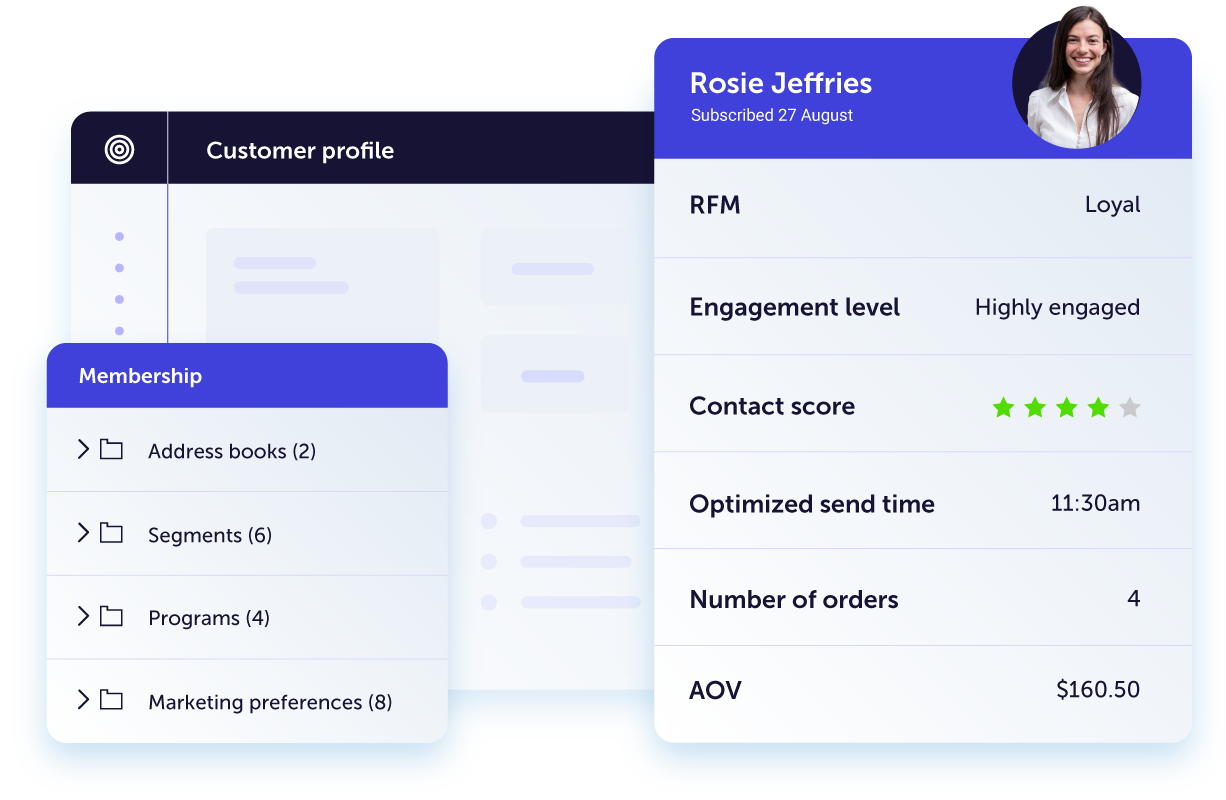
Bring together data from your marketing and tech stack to create a single, trusted source from which you can build your marketing strategy. Our advanced machine learning algorithms proactively enrich your data with insights ready to fuel your creative campaigns.
-
No more guesswork
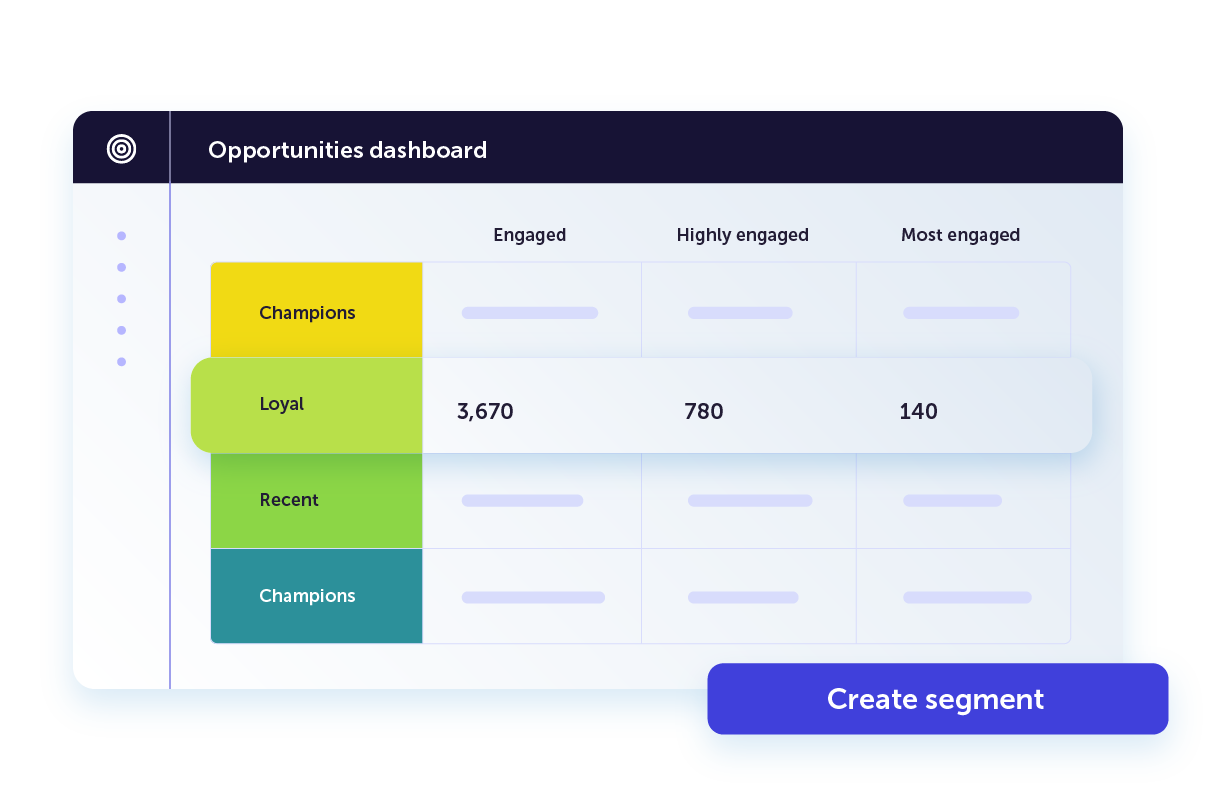
Get actionable insights into customer behavior and intent
Our AI-powered platform organizes and visualizes your data into at-a-glance insights you can use to build high-converting campaigns. Our intuitive dashboards help you focus on the quick wins and the big picture at the same time.
-
Hyper-personalized campaigns
Campaigns that capture customers and experiences that keep them
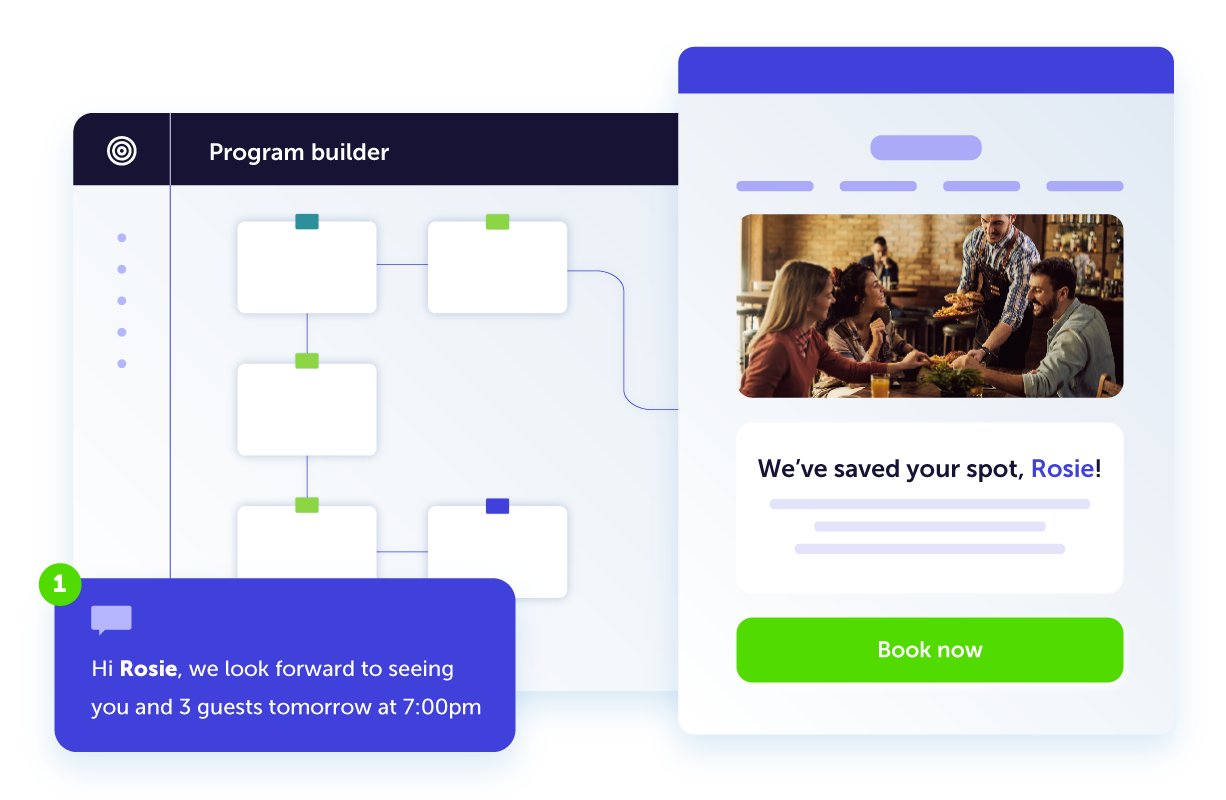
Build complex customer journeys in a snap and deliver the right message to the right person at the right time, every time. Dotdigital’s cross-channel reach helps you connect on every channel for a completely seamless customer experience.
Cross-channel marketing
Deliver unparalleled marketing across all channels


-
Personalized marketing at scale
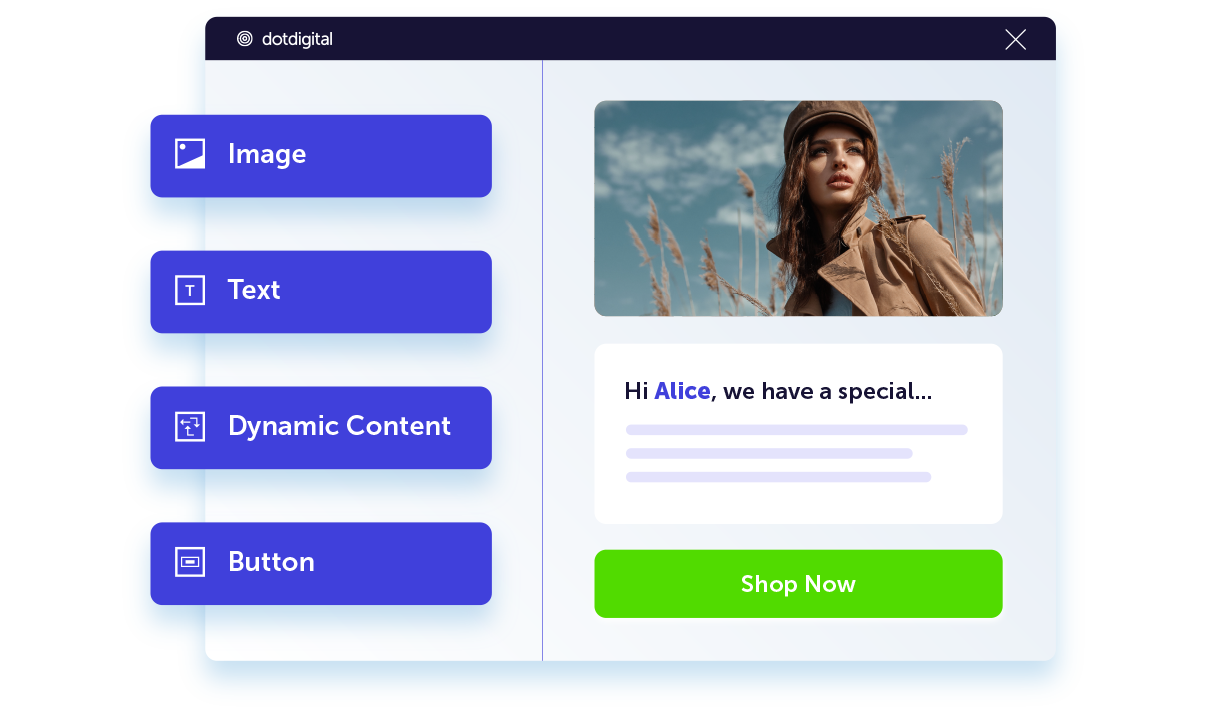
Learn moreOur easy-to-use email editor makes designing eye-catching marketing simple. Product recommendations and dynamic content help turn your customer data into 1:1 tailored customer experiences.
-
Timely messages that inspire immediate action
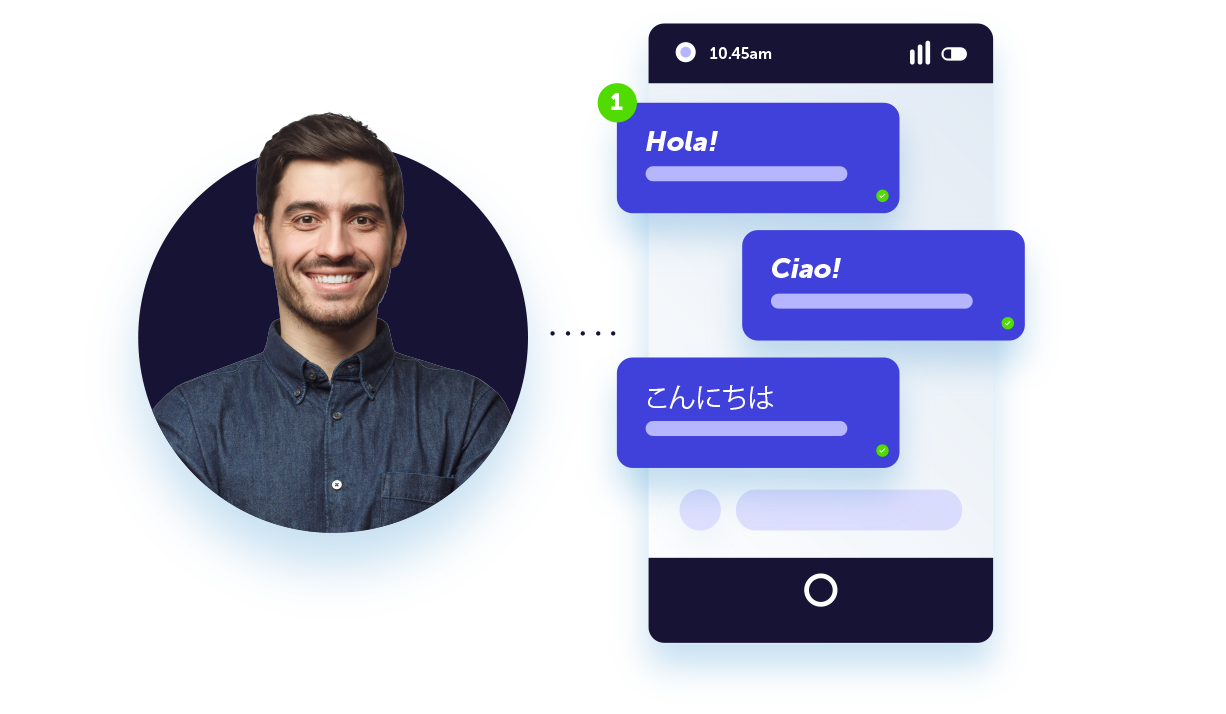
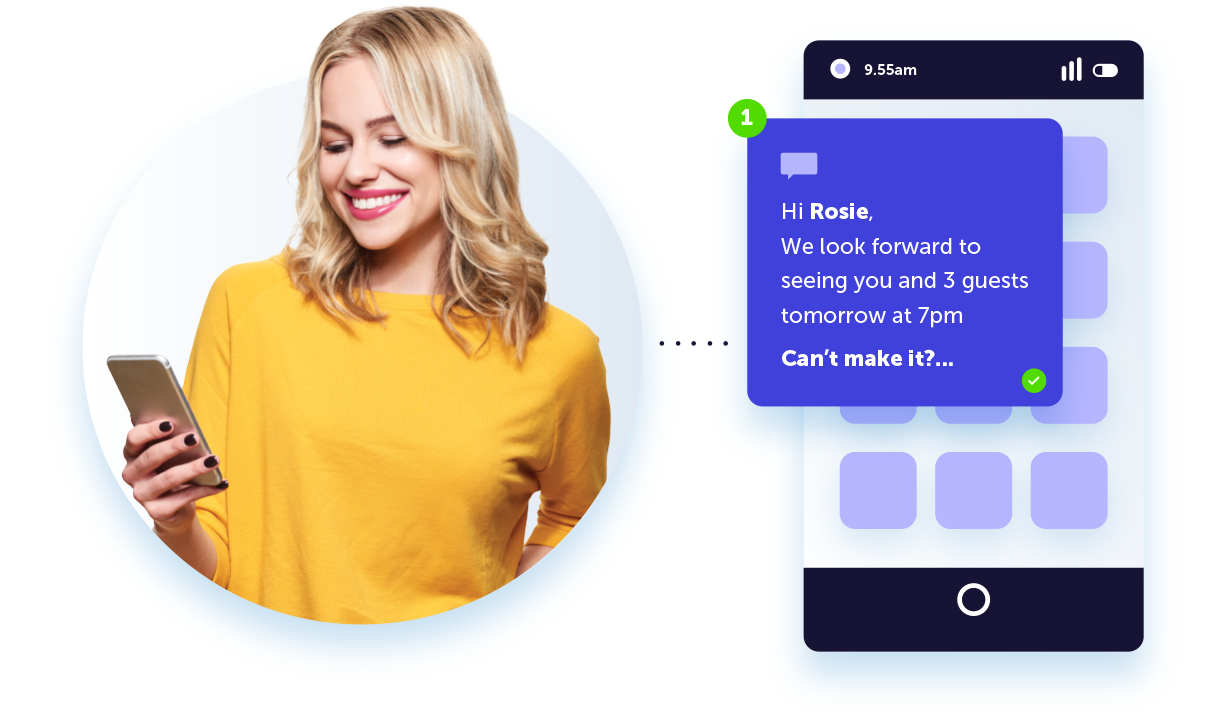
Learn moreDeliver SMS messages that will delight your customers. Create personalized and contextual SMS marketing campaigns alongside automated email marketing efforts for a well-rounded strategy, all delivered to over 220 countries around the world.
-
Turn visitors into meaningful connections
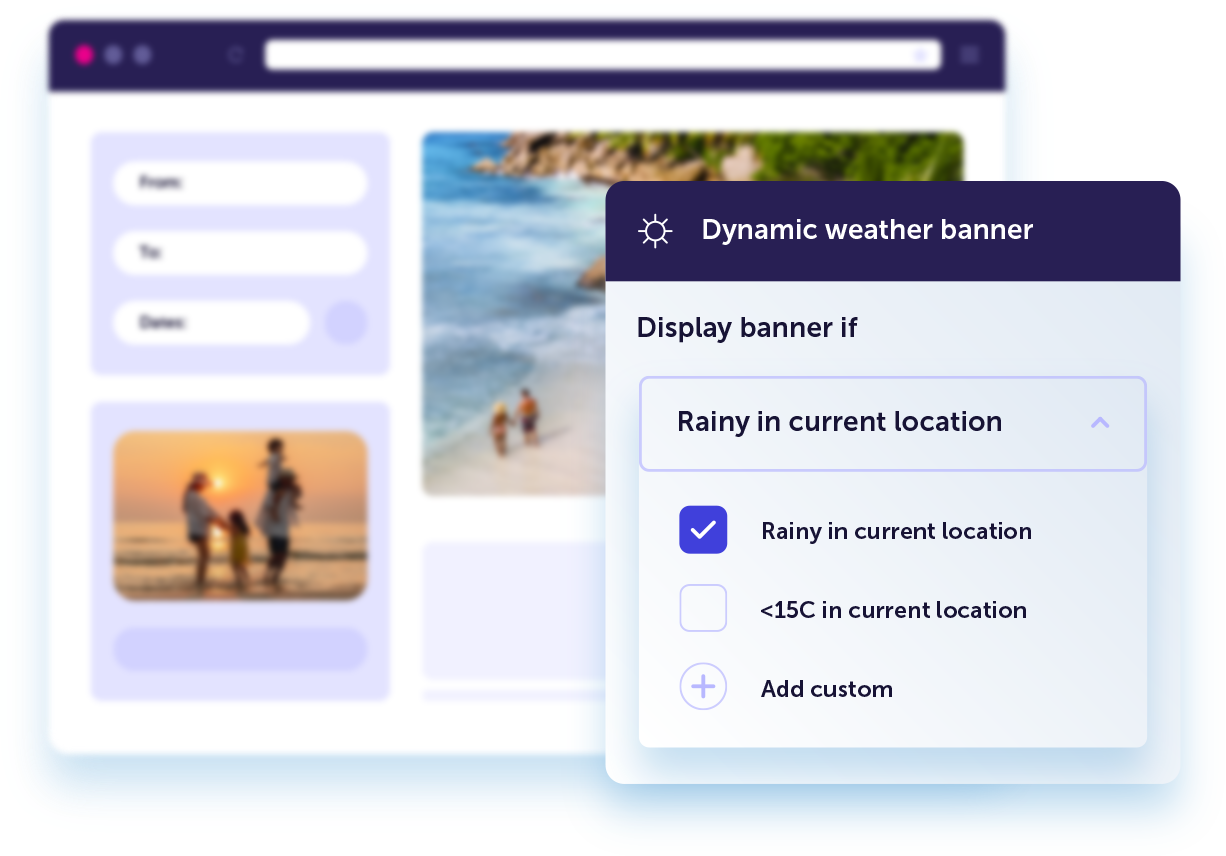
Learn moreCreate personalized website experiences that convert. Automatically display website content tailored in real-time based on a visitor’s unique behavior, preferences, location, or weather.
-
Onsite experiences that can't be missed
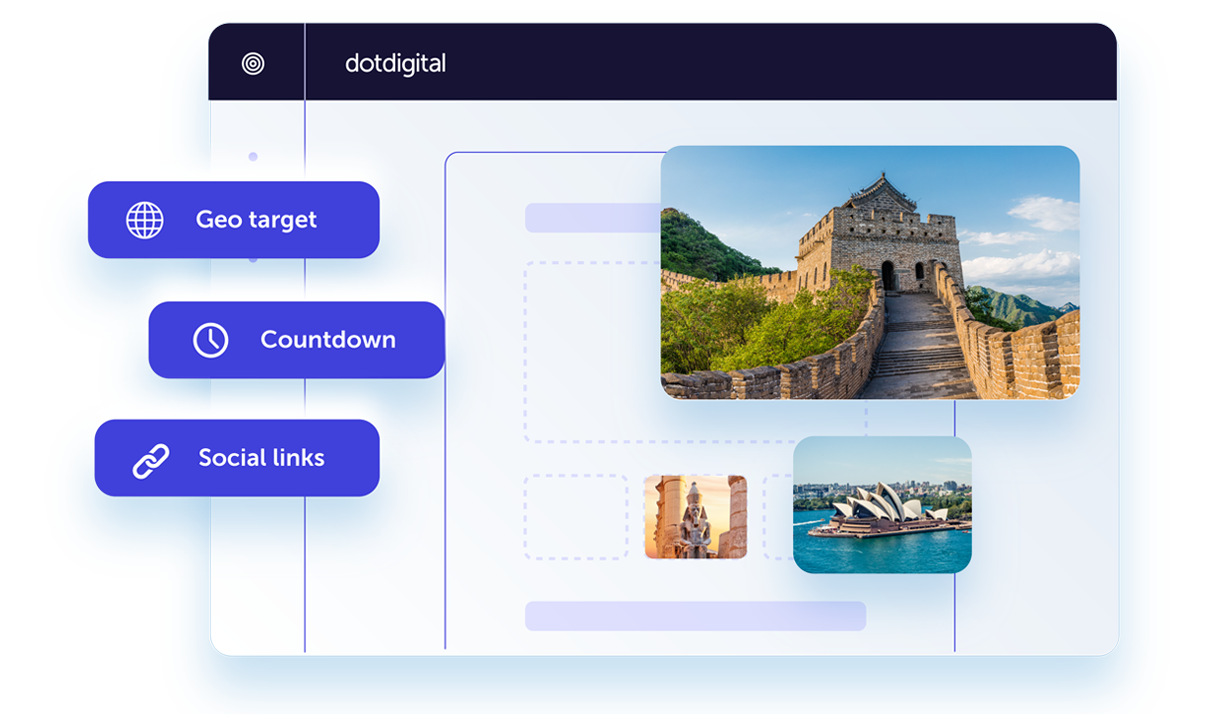
Learn moreDesign online customer experiences that boost conversions and drive acquisitions. Create optimized landing pages and forms that will help you grow your marketing lists and collect zero-party data.
-
Connect, convert, and grow your audiences
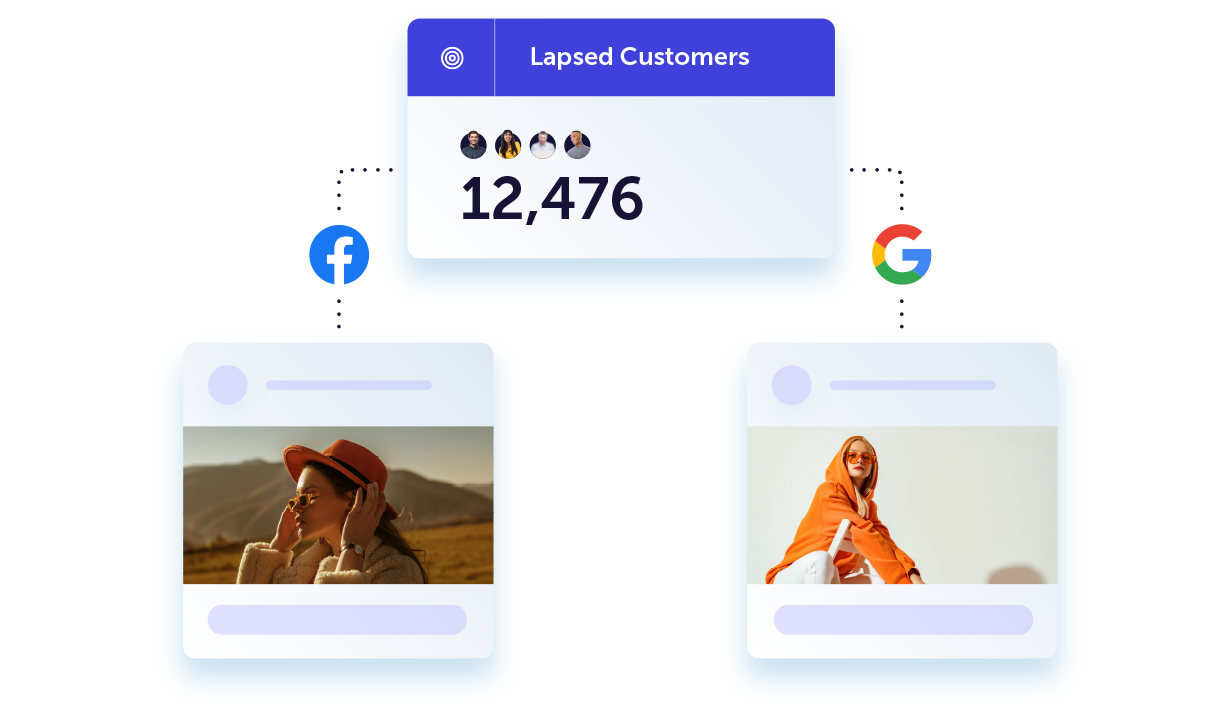
Learn moreBoost the impact of your retargeting ads by delivering the right content at the right time. Seamlessly sync data two-ways between your social and Google ad audiences to create perfectly connected customer experiences.
-
Drive sales and create more opportunities
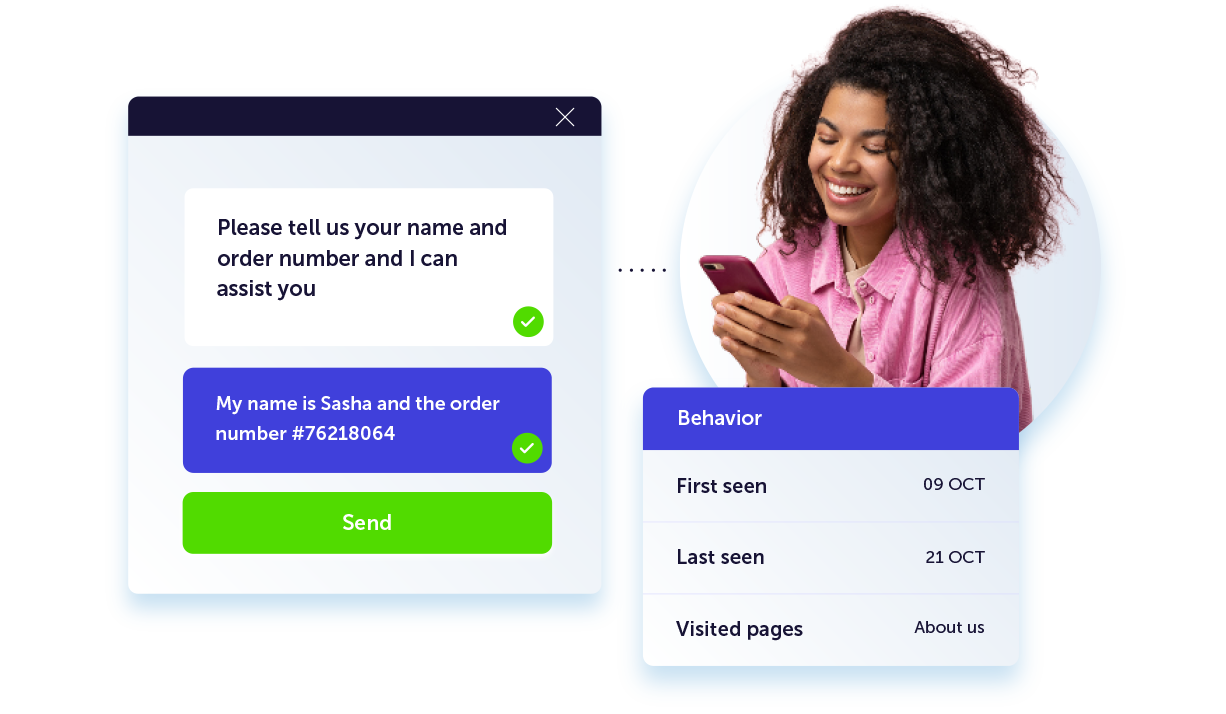
Solve customer problems in real-time with live chat widgets you can add directly to your website. Reduce friction and remove barriers to purchase by equipping chat agents with complete customer profiles for a smooth CX.
-
Tailored messages in the palm of their hand
Build stronger customer relationships by delivering personalized push notifications. Integrating push into your cross-channel strategy will drive conversions and an immediate uptake in app engagement.
How do your results stack up to others in your industry?
Customers love us
Industry recognized and customer approved
“Dotdigital product recommendations have allowed us to get through a few roadblocks that the team faced previously."
We struggled to match complex product packages to customers, but that’s where AI has come into play. The fact that we have access to an emerging technology that is proving its potential, is quite thrilling. It enables us to build many capabilities with very low effort and much higher returns.
Adam Hollinshead
Chief Digital Officer at winedirect